Fixing a Mistake
Emma clicks the wrong button and changes a task by mistake. Jack calmly helps her undo the change and try again.
Dialogue9
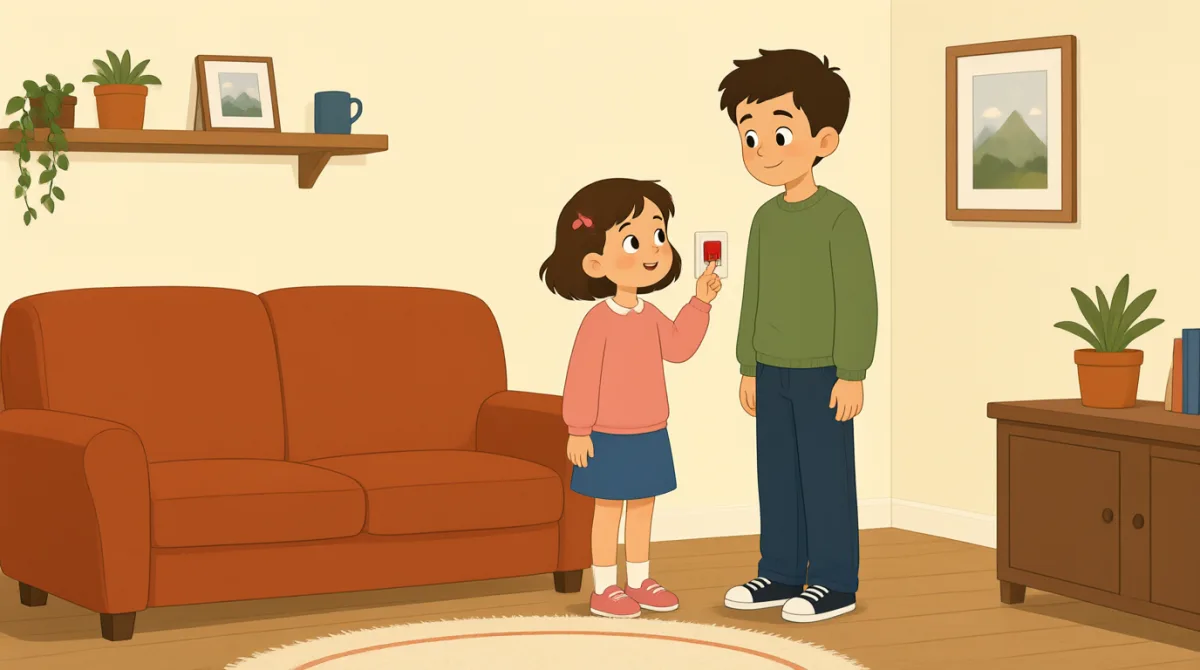

Oh no, I clicked the wrong button. I changed the task by mistake.

That’s okay, Emma. We can undo it. Look at the top of the page.
I see a little arrow. Should I click the one on the left?
Yes, click the left arrow once. That will undo your last change.
Okay, I clicked it. The task looks right again now.
Great. Now try again, but take it one step at a time.
I’ll open the task first, then choose the right button.
That’s right. Check the change before you save it.
Got it. I’ll check it first next time. Thanks for helping me.
Vocabulary8
- by mistake
This means you did something accidentally, not on purpose. Use it to explain how an error happened.
- undo it
This means to cancel a change and return to how something was before. Use it when you want to fix a recent action.
- the top of the page
This means the upper part of a page on a screen. Use it to tell someone where to look.
- once
Here, this means one time. Use it when giving a simple instruction about how many times to click or do something.
- last change
This means the most recent change you made. You can use it when talking about editing a task or document.
- one step at a time
This means doing things slowly, in order, one after another. Use it to give calm advice.
- try again
This means to make another attempt. Use it when someone can repeat an action after a mistake.
- save it
This means to store a change so it stays in the software. Use it when you finish editing something.
Key Sentences8
- 1
We can undo it.
This is a reassuring way to say that a mistake can be fixed. Use “We can…” to offer help with a problem.
- 2
Should I click the one on the left?
This is a useful way to check which option to choose. Replace “the one on the left” with another option when needed.
- 3
That will undo your last change.
This explains what an action will do. Use “That will…” to describe the result of a button or step.
- 4
The task looks right again now.
This is a simple way to say that something appears correct after a fix. You can replace “the task” with another item.
- 5
Now try again, but take it one step at a time.
This gives gentle advice to repeat an action carefully. Use “take it one step at a time” when someone should go slowly.
- 6
I’ll open the task first, then choose the right button.
This describes a plan with two actions in order. Use “first, then…” to explain the steps you will follow.
- 7
Check the change before you save it.
This is a clear instruction to review something before storing it. You can use “Check [something] before you [action]” for other tasks.
- 8
I’ll check it first next time.
This is a useful way to say what you will do differently in the future. Use “I’ll… next time” to describe a plan after a mistake.