Adjusting Device Settings
ضبط إعدادات الجهاز
Someone wants to adjust basic settings on their digital device, like screen brightness, font size, or notification sounds, and asks for help locating these options.
يريد شخص تعديل الإعدادات الأساسية على جهازه الرقمي، مثل سطوع الشاشة أو حجم الخط أو أصوات الإشعارات، ويطلب المساعدة في العثور على هذه الخيارات.
حوار10


Hey Jack, could you help me with something on my tablet?
مرحبًا يا جاك، هل يمكنك مساعدتي في شيء على جهازي اللوحي؟
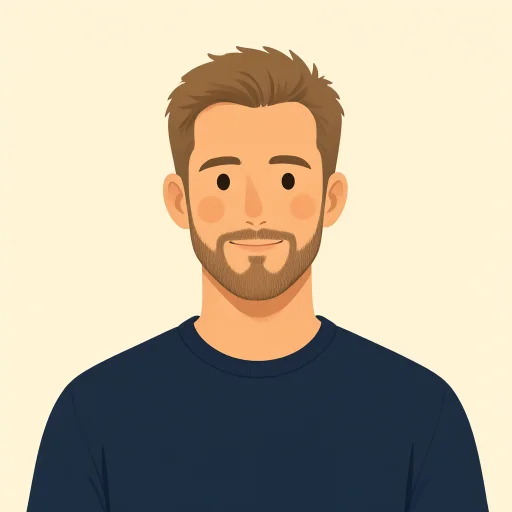
Sure, Emma. What's up?
بالتأكيد يا إيما. ما الأمر؟
I'm trying to adjust the screen brightness. It's a bit too dim, and I can't seem to find the setting. Also, the font size is a little small for me.
أحاول ضبط سطوع الشاشة. إنها معتمة قليلًا، ولا أستطيع العثور على الإعداد. كما أن حجم الخط صغير قليلًا بالنسبة إليّ.
No problem. For brightness, swipe down from the top of the screen. You should see a slider there. For font size, you'll need to go into the 'Settings' app.
لا مشكلة. لضبط السطوع، مرّري إصبعك إلى الأسفل من أعلى الشاشة. ستجدين هناك شريطًا منزلقًا. أما حجم الخط، فستحتاجين إلى فتح تطبيق «الإعدادات».
Okay, swiping down worked for the brightness! Thanks!
حسنًا، نجح السحب إلى الأسفل في ضبط السطوع! شكرًا!
Great! Now for the font, open 'Settings', then look for 'Display' or 'Accessibility'. It varies a bit between devices.
رائع! والآن، لتعديل الخط، افتحي «الإعدادات»، ثم ابحثي عن «الشاشة» أو «إمكانية الوصول». تختلف الخيارات قليلًا من جهاز إلى آخر.
Got it. I see 'Display'. Oh, and after that, I also want to change my notification sound. Where would I find that?
فهمت. أرى «الشاشة». وأريد أيضًا بعد ذلك تغيير صوت الإشعارات. أين أجده؟
For notification sounds, you'll generally find that under 'Settings' too, but look for 'Sound & Vibration' or 'Notifications'.
ستجدين عادةً إعدادات أصوات الإشعارات ضمن «الإعدادات» أيضًا، لكن ابحثي عن «الصوت والاهتزاز» أو «الإشعارات».
Perfect! This is super helpful. Thanks for guiding me through it, Jack.
ممتاز! هذا مفيد جدًا. شكرًا لأنك أرشدتني خطوة بخطوة يا جاك.
Anytime, Emma. Glad I could help!
في أي وقت يا إيما. سعيد لأنني استطعت مساعدتك!
المفردات9
- tabletجهاز لوحي
A tablet is a portable electronic device like an iPad, used for reading, browsing the internet, and playing games. It's larger than a smartphone but smaller than a laptop.
الجهاز اللوحي جهاز إلكتروني محمول مثل iPad، يُستخدم للقراءة وتصفح الإنترنت وممارسة الألعاب. حجمه أكبر من الهاتف الذكي وأصغر من الحاسوب المحمول.
- adjustيضبط
To adjust means to change something slightly to make it better or more suitable, like changing the settings on a device to improve how it works for you.
تعني كلمة 'adjust' إجراء تغيير بسيط على شيء ما لجعله أفضل أو أنسب، مثل تغيير إعدادات الجهاز ليعمل بالطريقة التي تناسبك.
- brightnessسطوع
Brightness refers to how light or dark the screen of a device is. You can increase it if the screen is too dim to see clearly.
تشير كلمة 'brightness' إلى مدى إضاءة شاشة الجهاز أو عتمتها. يمكنك زيادة السطوع إذا كانت الشاشة معتمة جدًا بحيث يصعب رؤيتها بوضوح.
- dimمعتم
Dim means not bright enough, like when a screen is too dark and hard to read. It's the opposite of bright.
تعني كلمة 'dim' أن الإضاءة ليست قوية بما يكفي، مثلما تكون الشاشة مظلمة جدًا ويصعب قراءتها. وهي عكس 'bright'.
- font sizeحجم الخط
Font size is the size of the text or letters on a screen. You can make it larger if it's too small to read comfortably.
يشير 'font size' إلى حجم النص أو الحروف على الشاشة. يمكنك تكبيره إذا كان صغيرًا جدًا بحيث يصعب قراءته براحة.
- swipeيمرّر إصبعه
To swipe means to slide your finger quickly across the screen of a device to perform an action, like opening a menu.
تعني كلمة 'swipe' تحريك إصبعك بسرعة على شاشة الجهاز لتنفيذ إجراء ما، مثل فتح قائمة.
- sliderشريط منزلق
A slider is a movable bar on a screen that you drag with your finger to adjust settings, like increasing or decreasing brightness.
'slider' شريط قابل للتحريك على الشاشة، تسحبه بإصبعك لضبط الإعدادات، مثل زيادة السطوع أو خفضه.
- settingsالإعدادات
Settings are the options in an app or device where you can change how it works, such as brightness or sound levels.
'settings' هي الخيارات الموجودة في تطبيق أو جهاز، والتي تتيح لك تغيير طريقة عمله، مثل ضبط السطوع أو مستوى الصوت.
- notificationإشعار
A notification is an alert from your device, like a sound or message, to tell you about new emails or updates.
'notification' تنبيه يصدره جهازك، مثل صوت أو رسالة، لإخبارك بوصول رسائل بريد إلكتروني جديدة أو بتوفر تحديثات.
الجمل الأساسية8
- 1
Hey Jack, could you help me with something on my tablet?
مرحبًا يا جاك، هل يمكنك مساعدتي في شيء على جهازي اللوحي؟
This is a polite way to ask for help with a device. Use 'could you help me' to make a request softly. It's useful when starting a conversation about tech problems.
هذه طريقة مهذبة لطلب المساعدة بشأن جهاز. استخدم 'could you help me' لتقديم الطلب بلطف. وهي مفيدة عند بدء محادثة عن مشكلة تقنية.
- 2
Sure, Emma. What's up?
بالتأكيد يا إيما. ما الأمر؟
This is a casual response agreeing to help and asking for more details. 'What's up?' is informal slang meaning 'What's the problem?' Good for friendly conversations.
هذا رد عفوي بالموافقة على المساعدة وطلب مزيد من التفاصيل. التعبير 'What's up?' غير رسمي، ومعناه «ما المشكلة؟». وهو مناسب للمحادثات الودية.
- 3
I'm trying to adjust the screen brightness. It's a bit too dim, and I can't seem to find the setting.
أحاول ضبط سطوع الشاشة. إنها معتمة قليلًا، ولا أستطيع العثور على الإعداد.
Here, the speaker describes the problem using present continuous 'I'm trying' for ongoing action, and 'can't seem to' for difficulty. Useful for explaining tech issues clearly.
يصف المتحدث المشكلة باستخدام المضارع المستمر في 'I'm trying' للتعبير عن فعل مستمر، وعبارة 'can't seem to' للتعبير عن صعوبة القيام بشيء. وهذا مفيد لشرح المشكلات التقنية بوضوح.
- 4
For brightness, swipe down from the top of the screen. You should see a slider there.
لضبط السطوع، مرّر إصبعك إلى الأسفل من أعلى الشاشة. من المفترض أن ترى شريطًا منزلقًا هناك.
This gives step-by-step instructions using imperative 'swipe' for commands. 'You should see' suggests expectation. Perfect for guiding someone through device actions.
تقدّم هذه العبارة إرشادات خطوة بخطوة، مستخدمة صيغة الأمر في 'swipe'. أما 'You should see' فتعبّر عما يُتوقع أن تراه. وهي مناسبة لإرشاد شخص أثناء استخدام الجهاز.
- 5
For font size, you'll need to go into the 'Settings' app.
لضبط حجم الخط، ستحتاج إلى فتح تطبيق «الإعدادات».
This uses future 'you'll need to' for advice on next steps. It's helpful in tutorials, showing how to navigate apps on devices.
تستخدم العبارة 'you'll need to' لتقديم نصيحة بشأن الخطوة التالية. وهي مفيدة في الشروحات التي توضح كيفية التنقل بين التطبيقات على الأجهزة.
- 6
Okay, swiping down worked for the brightness! Thanks!
حسنًا، نجح السحب إلى الأسفل في ضبط السطوع! شكرًا!
This expresses success and gratitude. 'Worked for' means it solved the issue. Use this to confirm something helped and show appreciation.
تعبّر هذه الجملة عن نجاح الأمر والامتنان. تعني 'worked for' أن الأمر حل المشكلة. استخدمها لتأكيد أن شيئًا ما كان مفيدًا ولإظهار تقديرك.
- 7
For notification sounds, you'll generally find that under 'Settings' too, but look for 'Sound & Vibration' or 'Notifications'.
ستجد عادةً إعدادات أصوات الإشعارات ضمن «الإعدادات» أيضًا، لكن ابحث عن «الصوت والاهتزاز» أو «الإشعارات».
This provides general advice with 'generally' for common cases, and 'but' for variations. Useful for explaining settings that differ by device.
تقدّم الجملة نصيحة عامة باستخدام 'generally' للإشارة إلى الحالات الشائعة، و'but' للتنبيه إلى وجود اختلافات. وهي مفيدة لشرح إعدادات تختلف باختلاف الجهاز.
- 8
Perfect! This is super helpful. Thanks for guiding me through it, Jack.
ممتاز! هذا مفيد جدًا. شكرًا لأنك أرشدتني خطوة بخطوة يا جاك.
This shows strong thanks using 'super helpful' for emphasis. 'Guiding me through' means step-by-step help. Great for ending a helpful conversation.
تعبّر الجملة عن امتنان كبير، وتستخدم 'super helpful' للتأكيد على مدى الفائدة. وتعني 'Guiding me through' تقديم المساعدة خطوة بخطوة. وهي عبارة مناسبة لإنهاء محادثة مفيدة.